Read Aloud
 Read Aloud
 turns articles, PDFs, ebooks, and documents into audio so you can listen to the things you’ve been meaning to read.
Why I built it
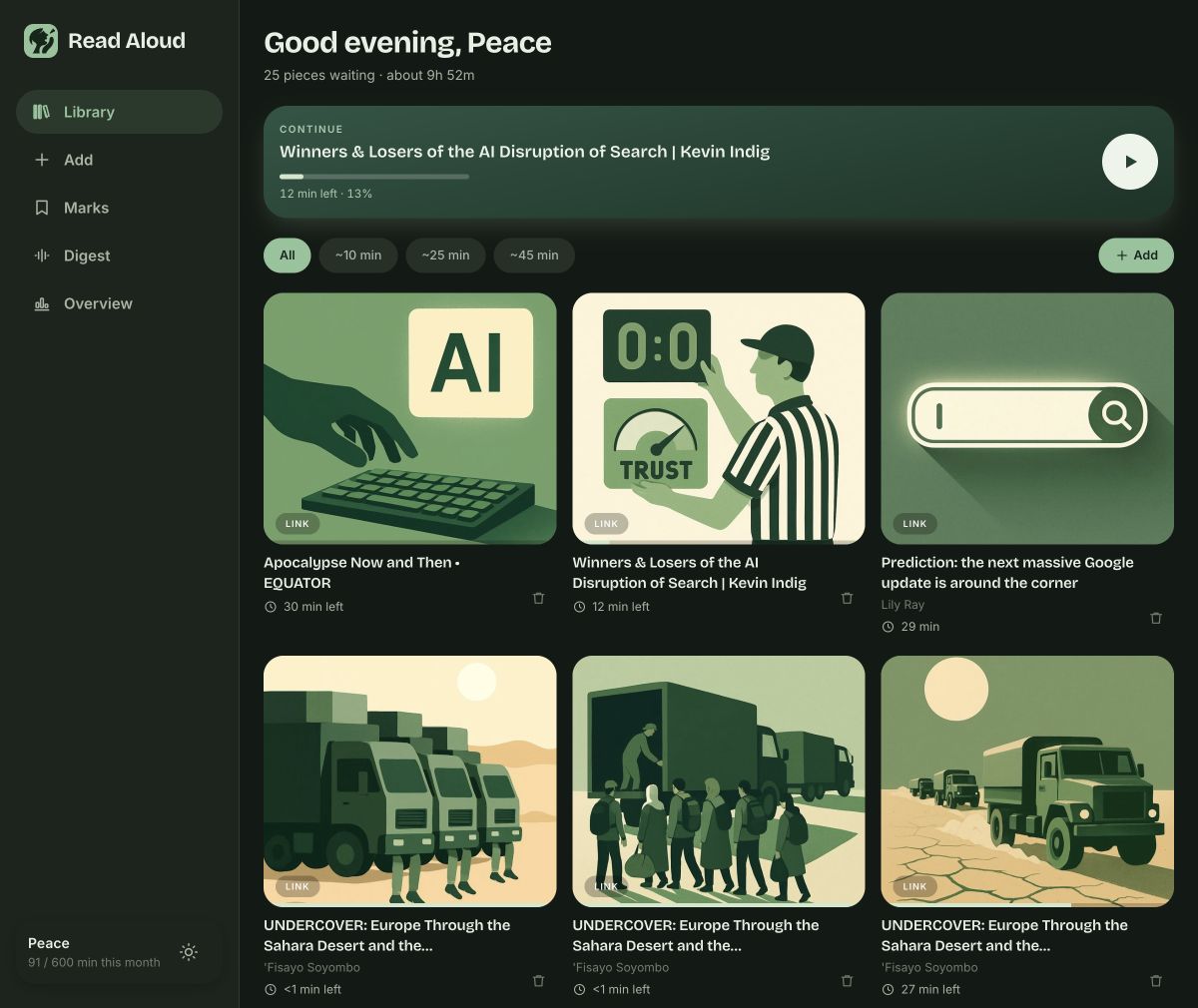
I like reading, but I had articles and books I kept bookmarking without getting around to them. My schedule is usually packed, so listening to them was an easier way for me to get through them without procrastination.
I built Read Aloud for myself and my wife, with a separate library for each of us so we could save our separate stuff and pick up where we left off.
How it works
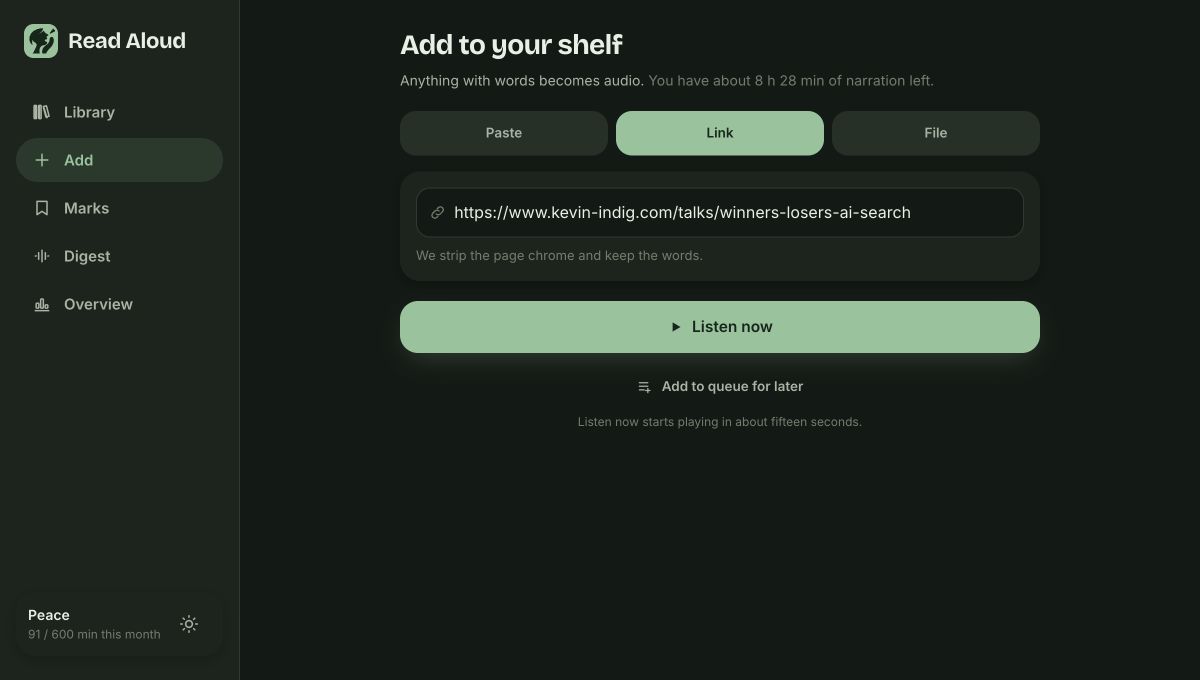
You can paste text, add a link to an article, or upload a Word document, EPUB, or PDF. Read Aloud extracts the text and uses OpenAI’s text-to-speech API to turn it into audio.
For articles and books, it preserves the author’s wording while cleaning up things such as repeated PDF headers and page numbers. That way, you can listen to the piece you saved without hearing the same header on every page. It also helps ensure that the AI doesn’t rewrite what the author wrote (because I noticed that bug at first).
Read Aloud also splits longer pieces into sections for narration. The audio is generated on the server, so you don’t have to keep the browser open while it processes.
Listen, read along, and save useful passages
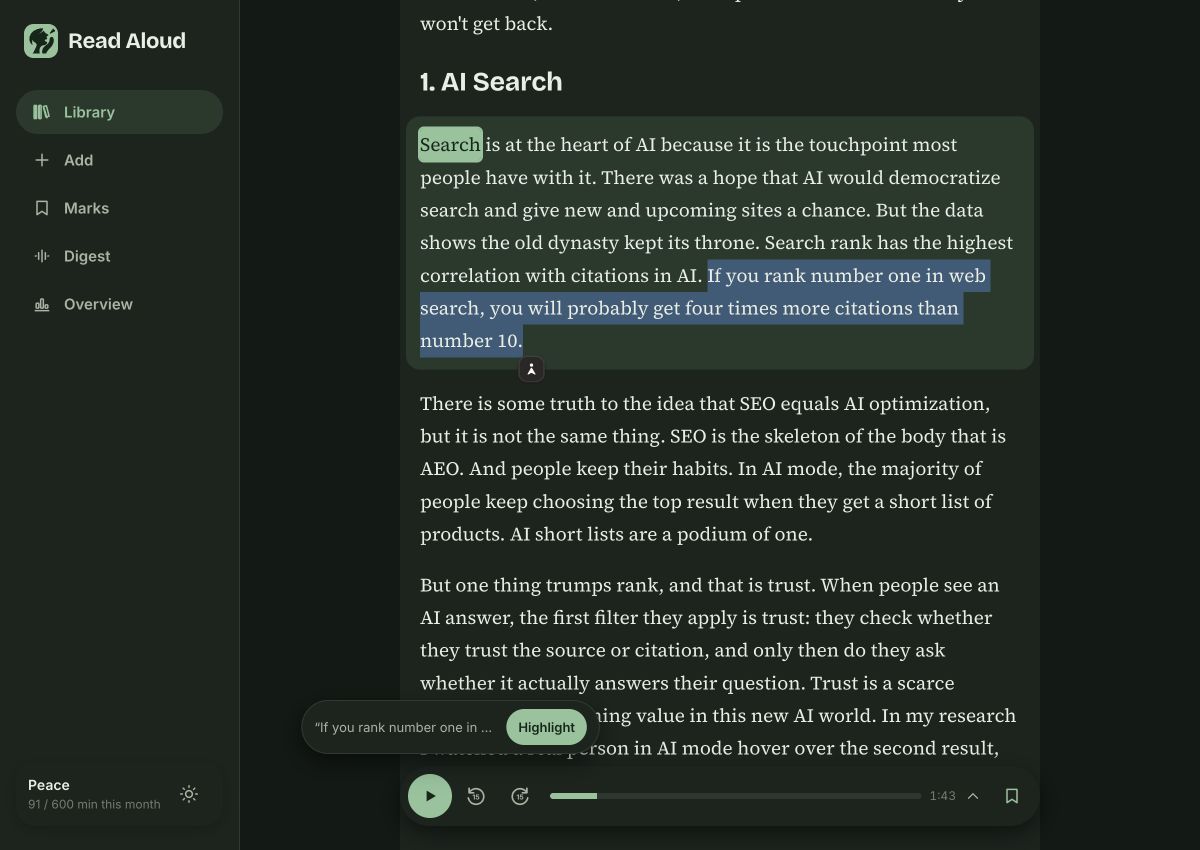
You can change the playback speed, skip through the recording, and resume where you stopped. There’s also a reading view if you want to follow the text while listening.
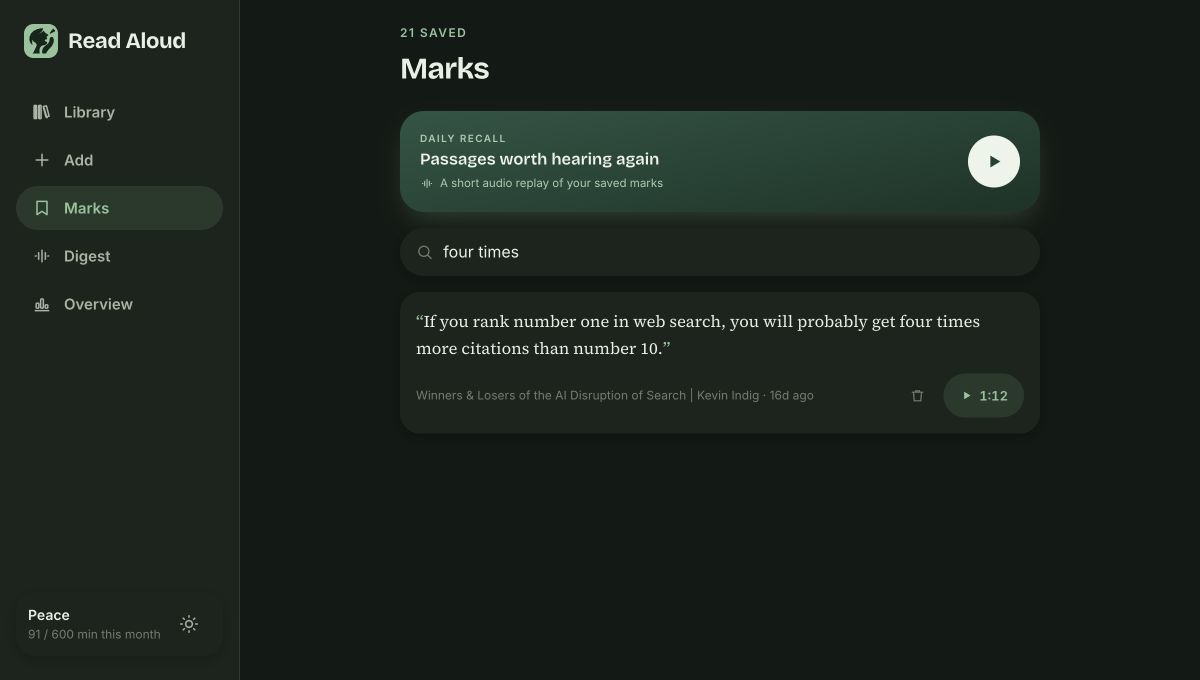
When you hear something you want to remember, you can save the passage as a highlight.
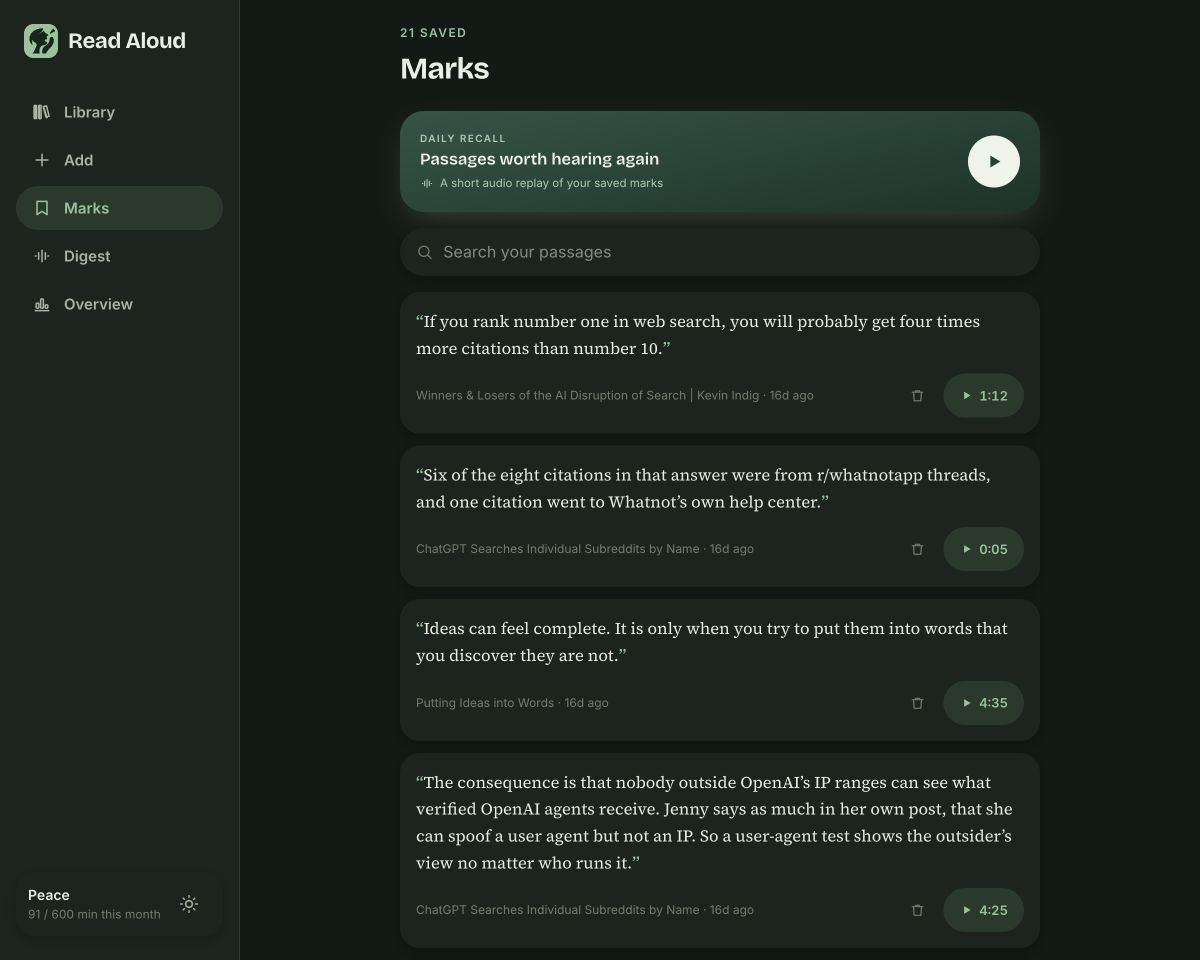
You can search those highlights later and return to that point in the recording without listening to the whole piece again.
Bottom line
Read Aloud gives me a way to get through my bookmarked content and keep the parts I want to return to. You can sign up with Google or an email code.