How I Built My Portfolio Website With Claude Code And How You Can Too
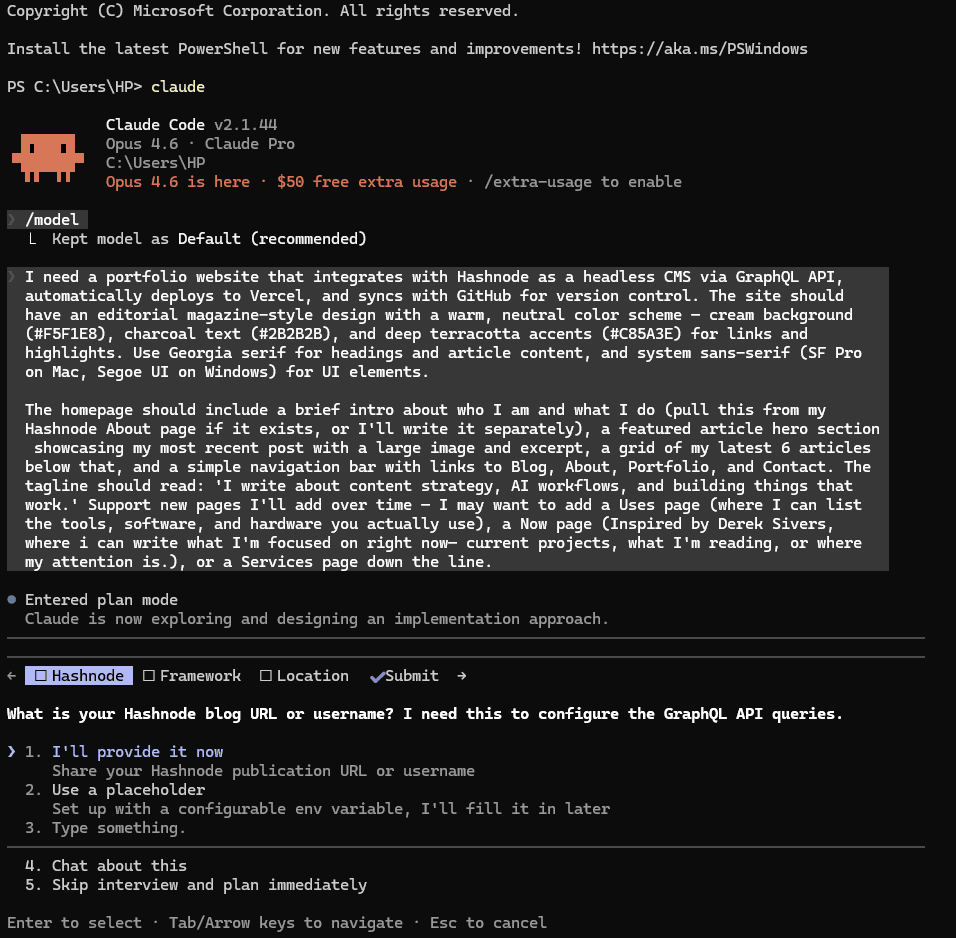
I write for B2B SaaS companies for a living. And yet I built a portfolio website from scratch without a web design agency or developer to call when something broke.
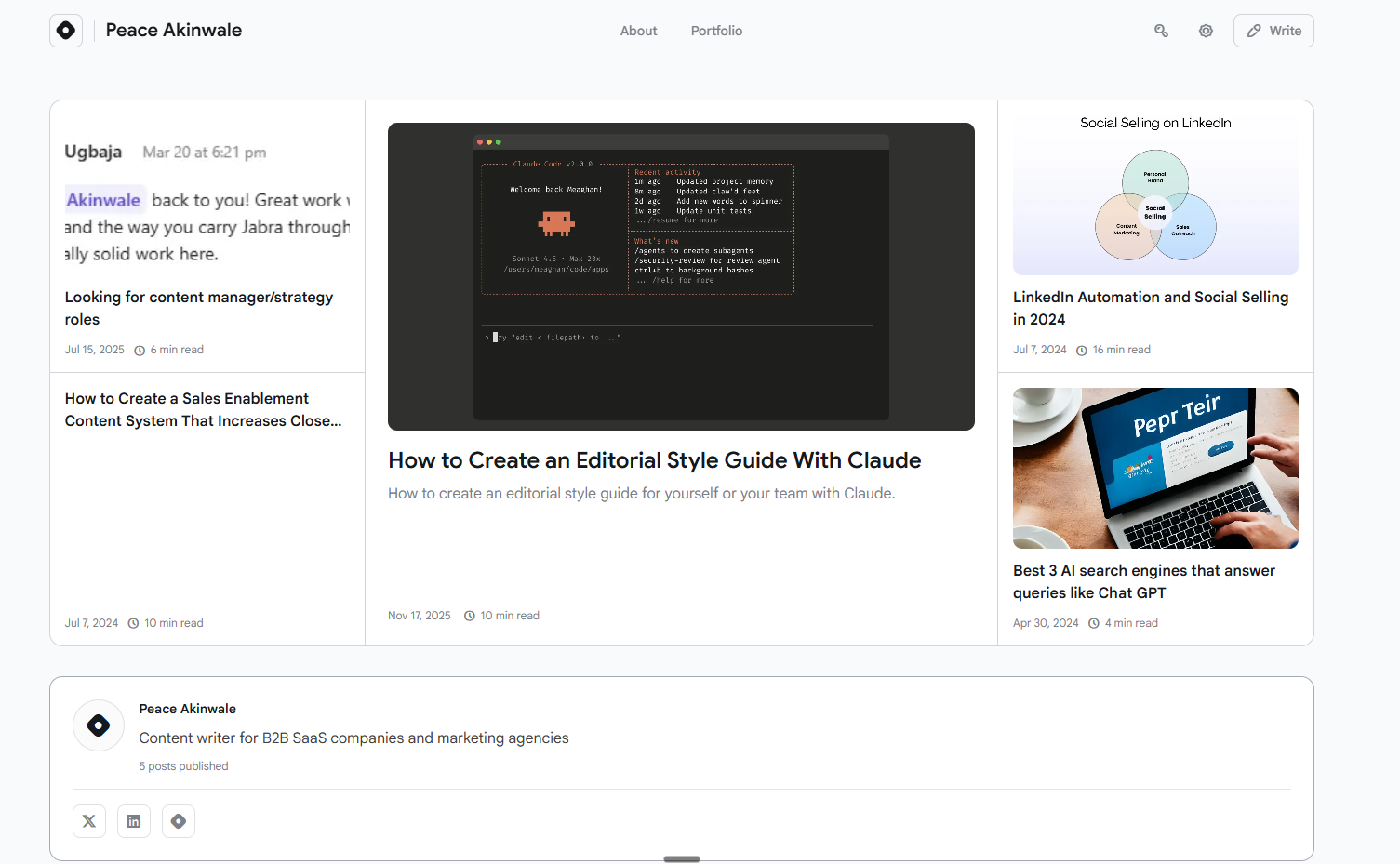
This is what my portfolio looked like before:
And this is what it looks like now (I’ve updated the UI now – the perks of using Claude Code):
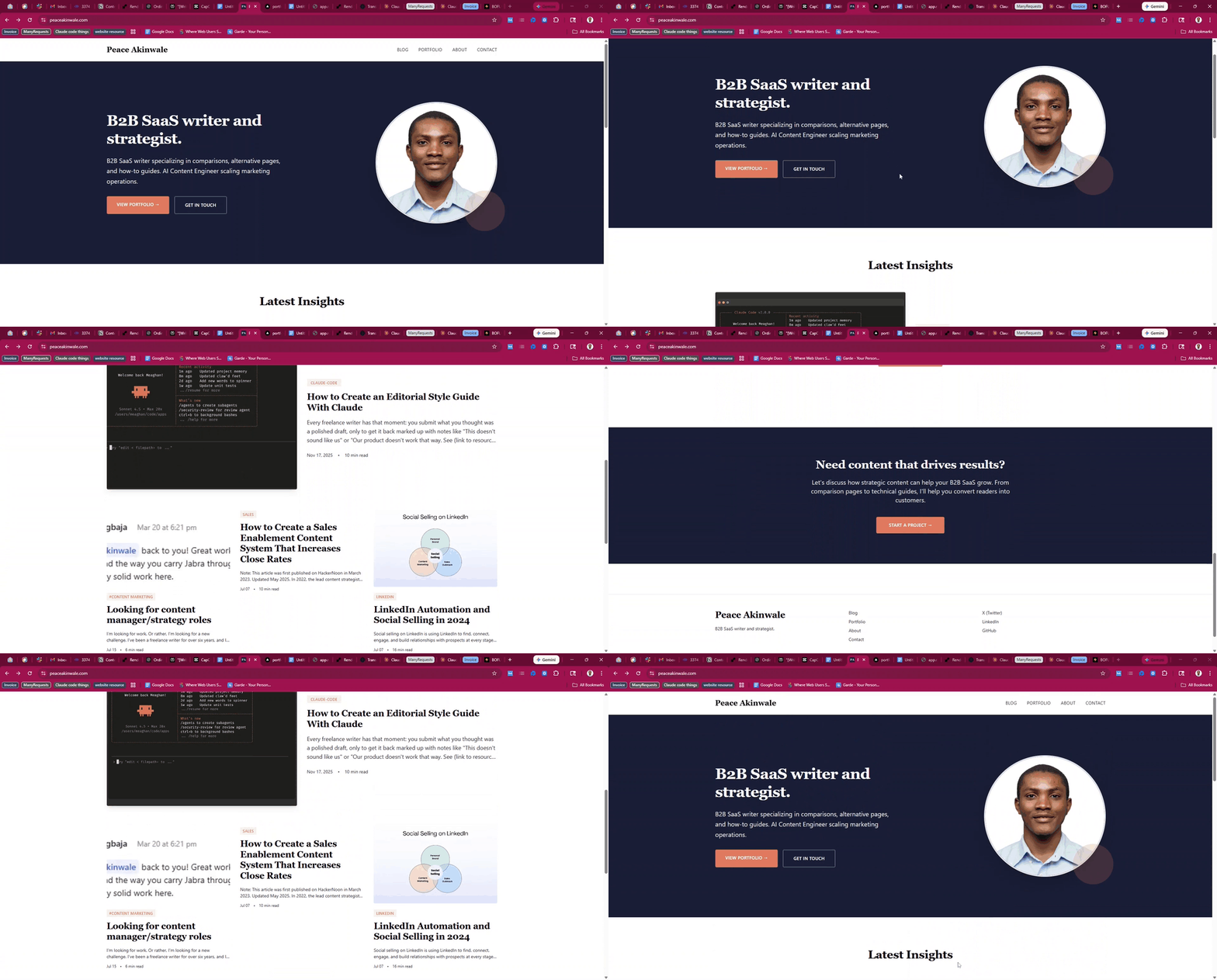
It’s also where you’re reading this article. You can check the landing page and other pages to see what I’ve done.
It took me about 24 hours across two days and would cost me $7/year to maintain it. I want to show you how to recreate this on your website, and even better, with Claude Code.
What you need
-
A Claude account (or an Anthropic API key)
-
A Hashnode account (or any other CMS that has an API)
-
A domain name via Namecheap (or any other registrar you prefer)
-
A free Vercel account for frontend
-
About two to three hours of your time.
Now, let’s get into it.
How to Use Claude Code to Build a Portfolio Website
First, why Claude Code and not Codex, OpenAI’s coding agent?
Claude Code prompts you to review and approve new code before it writes anything. Codex feels slower, and its default setting doesn’t ask for your sign-off before making changes.
That may work fine for senior developers, but as a junior dev guy, you want to read what it writes and decide what to accept before you accept it. This is my experience/preference though.
1. Start with your Namecheap
I’ve used Namecheap since 2023, when I first designed my portfolio website. It’s cheap, straightforward, and gets the job done. But you can choose an alternative like Hostinger.
Search for your domain name on Namecheap:
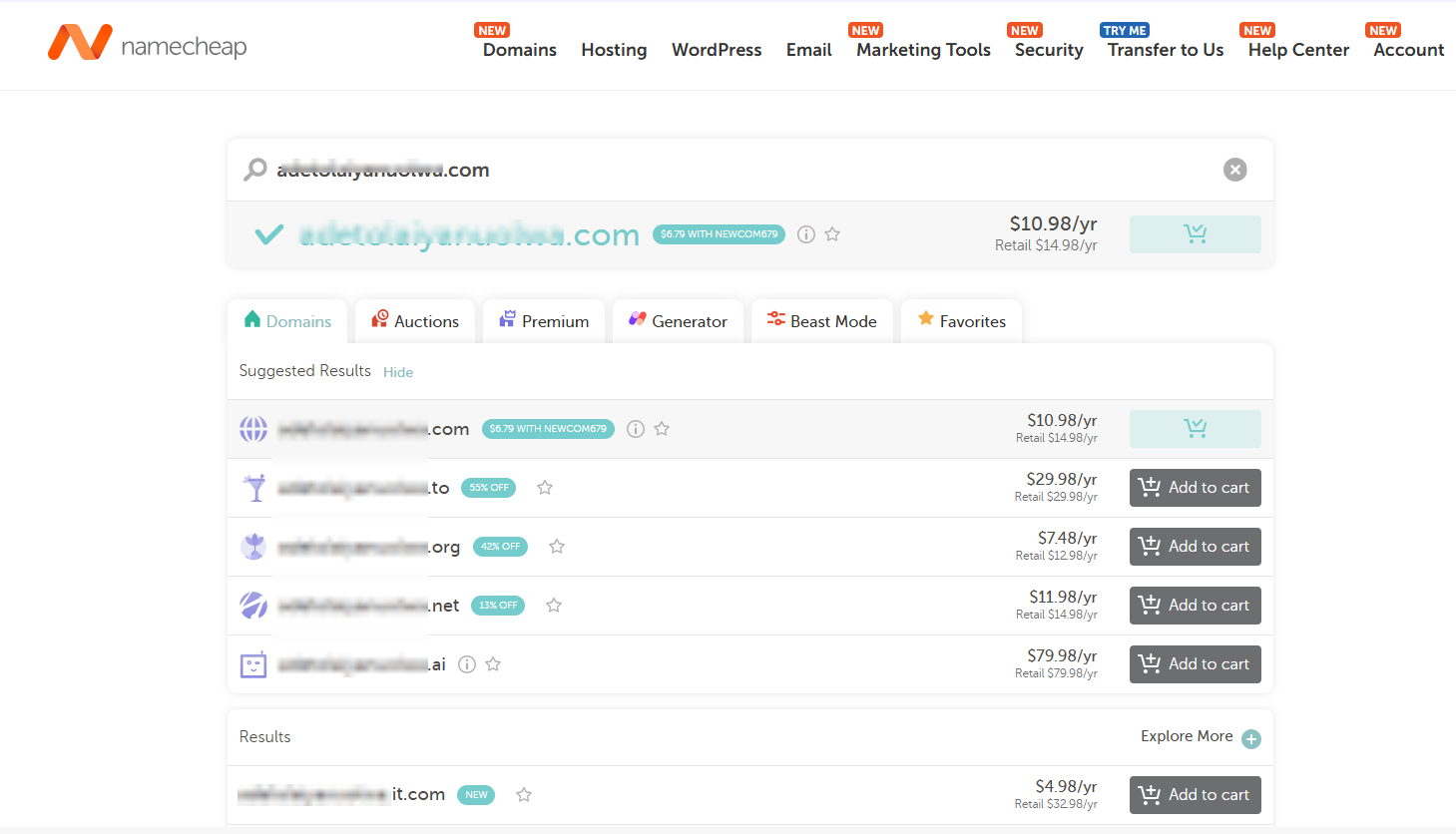
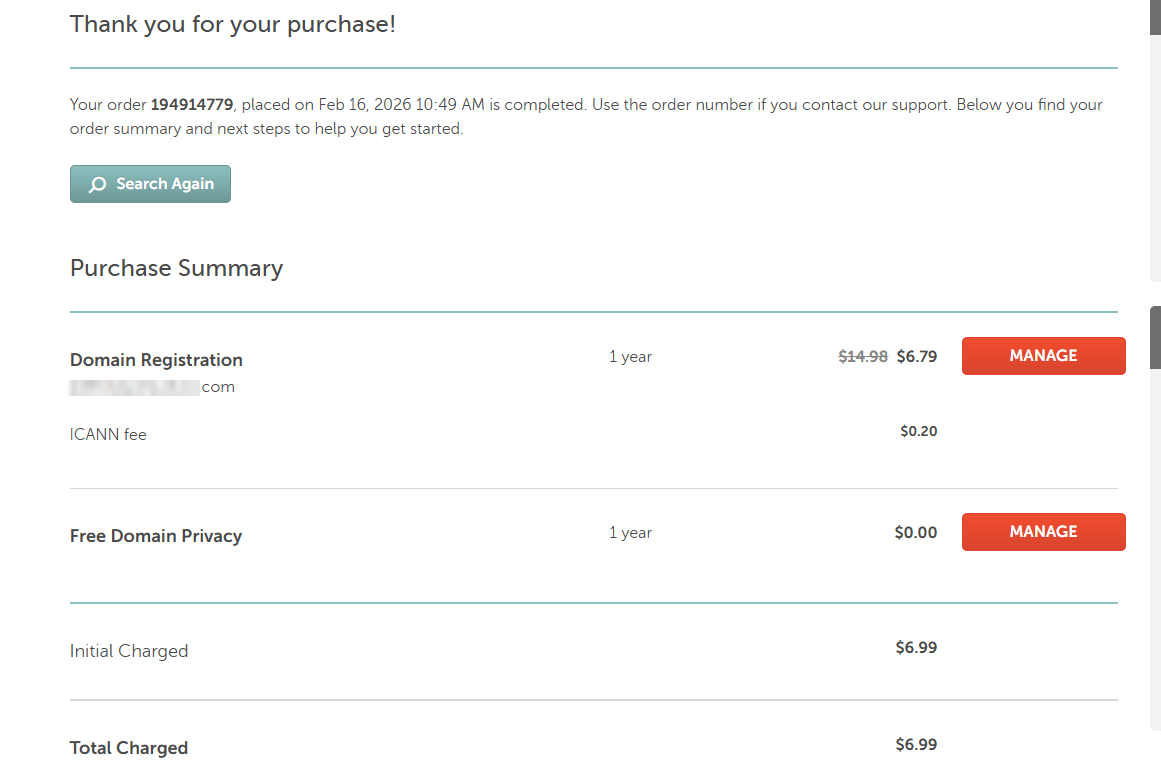
Once it’s available, add it to your cart. You can use the code NEWCOM679 to bring the first year down to $6.79.
Here’s what my purchase summary looked like, $6.99:
2. Set up Hashnode as your CMS
Hashnode is a headless content management system (CMS), which means it handles your content storage and management while you get full control over how that content looks on the front end.
Developers use it for API docs; I’ve always used it as a portfolio website, so migrating from it was straightforward.
If you’re starting from scratch, say you’ve been on Journo Portfolio or a similar platform, you’ll be creating a new blog from the ground up.
Head to Hashnode, sign up, hit “Create blog,” and check if your preferred URL is available:
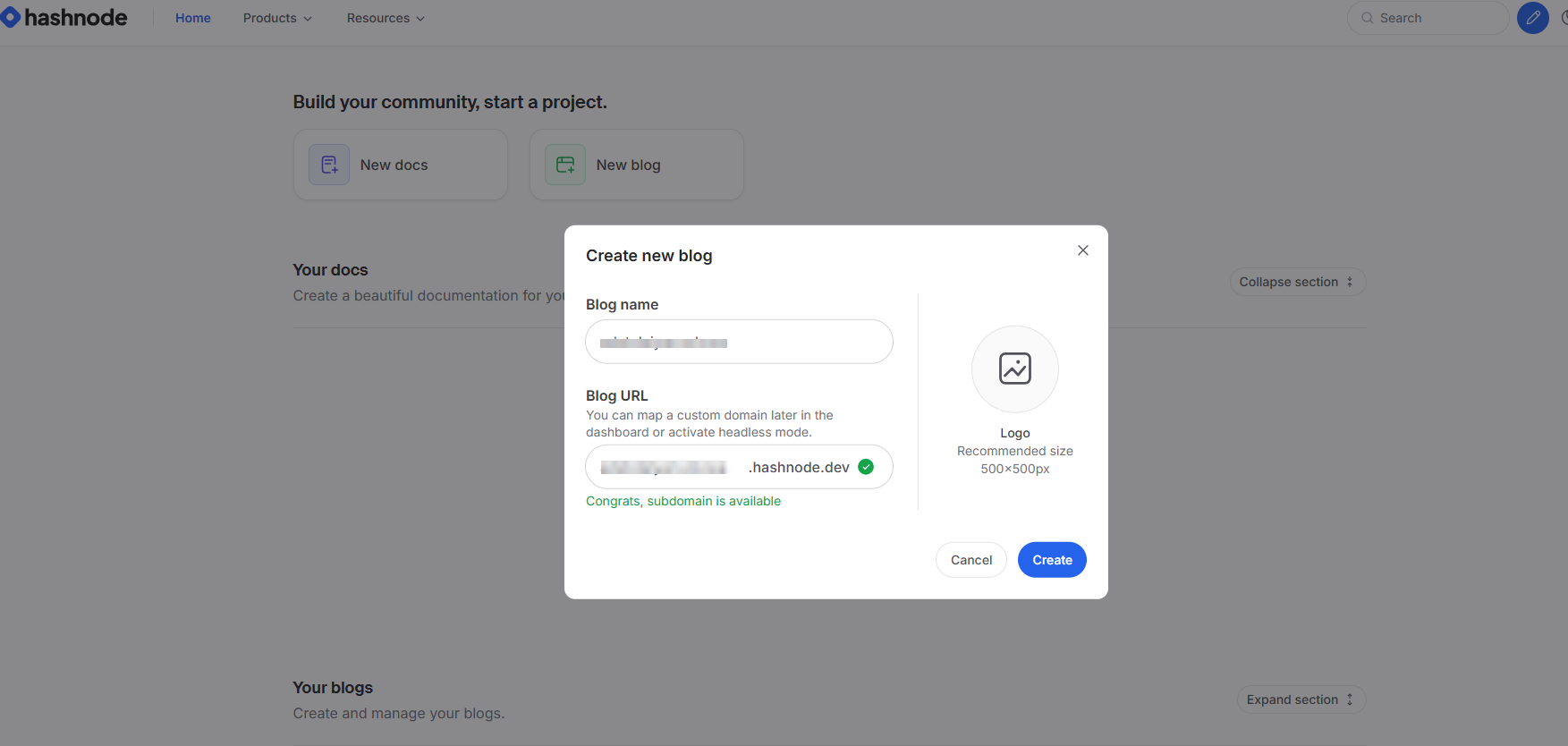
I’d use your domain name as the blog URL — peaceakinwale, or whatever your (brand) name is.
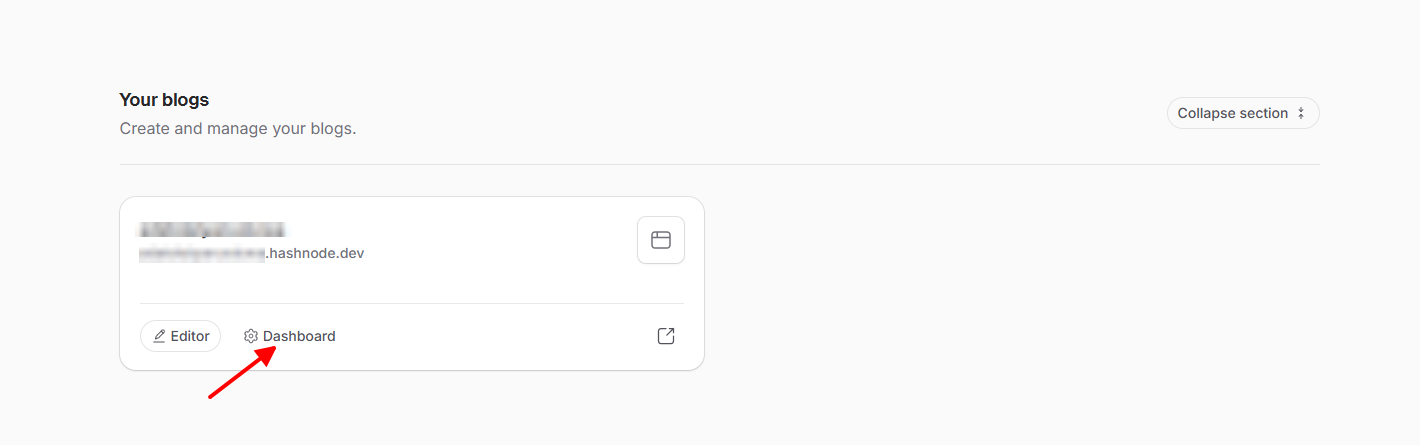
Once that’s set, refresh the page, click “Dashboard,” and you’ll see options to add pages, write articles, and configure your setup:
But that’s not the goal here. The goal is to vibe-code your entire website so it looks completely different and is fully customizable for your “brand.”
3. Enter Claude Code via the terminal
Every Windows and Mac device has a terminal built in. To install Claude Code, run this command if you’re on a Mac or Linux:
curl -fsSL https://claude.ai/install.sh | bash
If you’re on Windows:
irm https://claude.ai/install.ps1 | iex
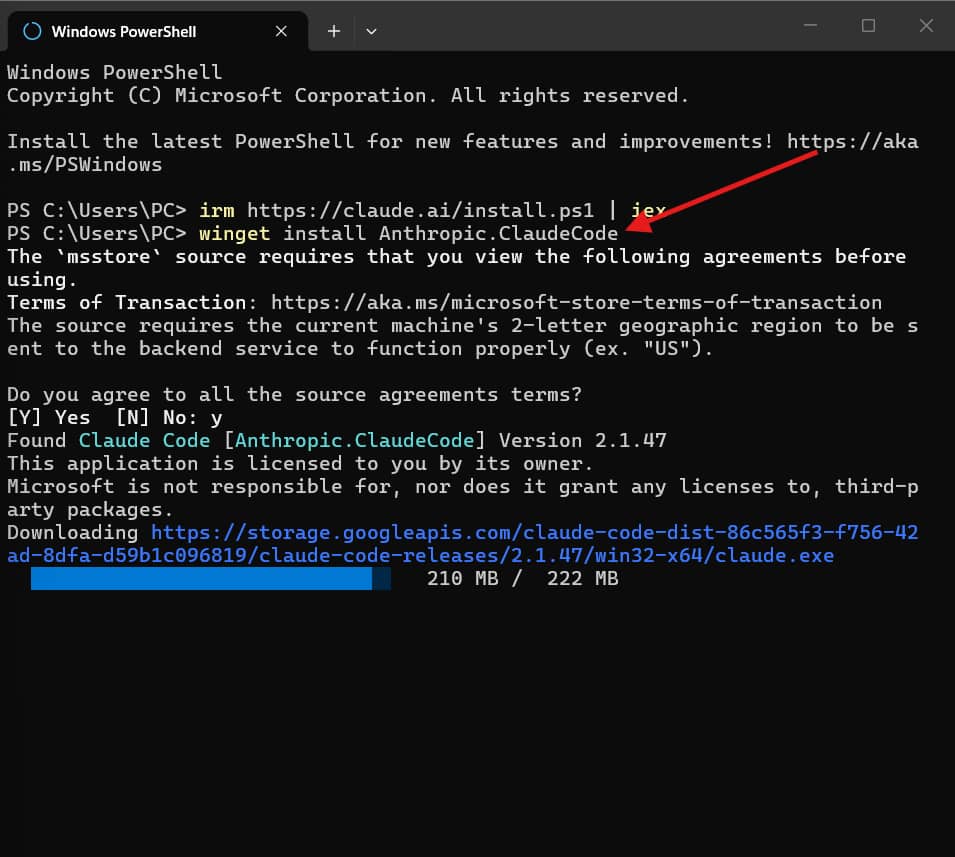
If this doesn’t work, press Ctrl C on your Windows PC, and try this:
winget install Anthropic.ClaudeCode
You’ll see this:
Once it’s installed, open another terminal and type “claude,” then hit Enter:
You’ll likely see something like this:
PS C:\Users\PC> claude Claude Code on Windows requires git-bash (https://git-scm.com/downloads/win) . If installed but not in PATH, set environment variable pointing to your ba sh. exe, similar to: CLAUDE_CODE_GIT_BASH_PATH=C:\Program Files\Git\bin\bash. exe PS C:\Users\PC>
Install https://git-scm.com/downloads/win (just click through the default options), and go back to your terminal. Write Claude, and you’ll see this:
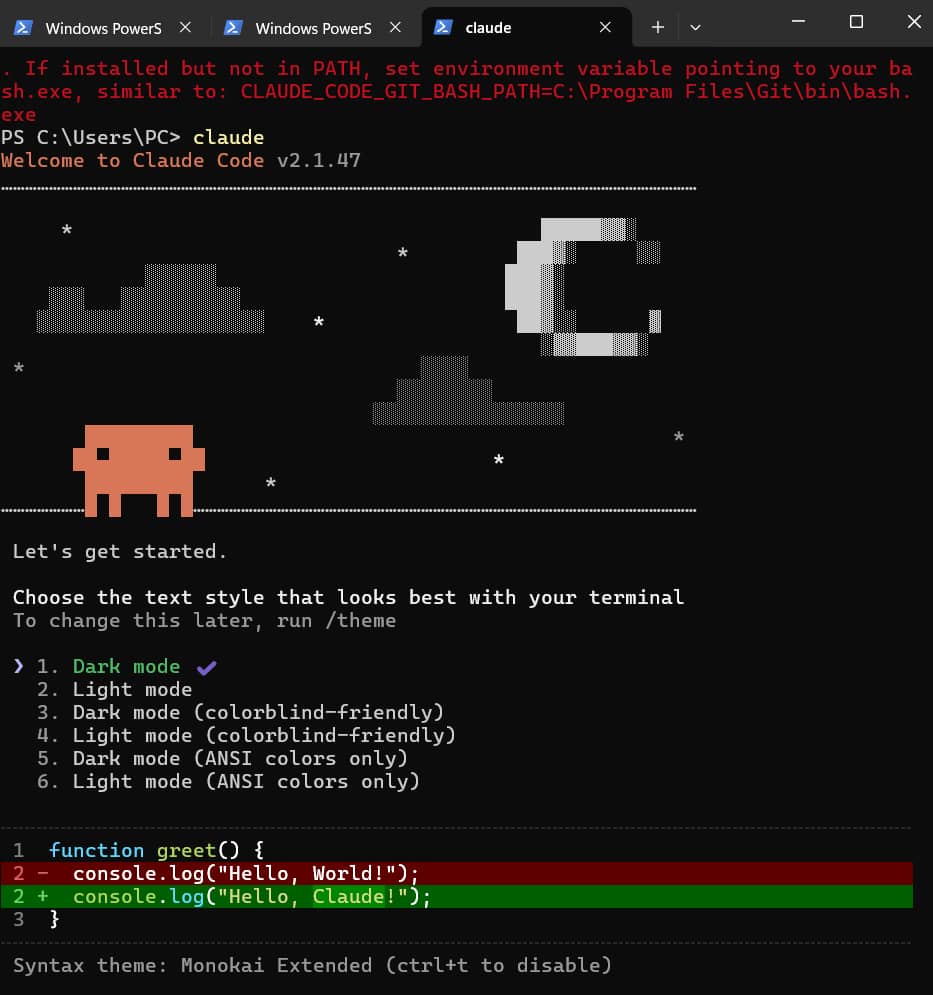
Choose the dark or light mode with your keyboard, and hit enter. You’ll be prompted to login with a Claude account… Choose the option that applies and login.
If there’s a specific folder on your computer where you’d like to keep your portfolio project, you’ll want to navigate there before you start.
Type “cd” followed by the path to that folder. For example, cd C:/Peace PC, and hit Enter.
That tells the terminal to move into that folder so that when Claude Code starts building, the files land exactly where you want them.
If the folder doesn’t exist yet, you can ask Claude Code to create it for you.
I keep a dedicated folder for my work, so I’d tell it to go to “C:/Peace PC” and create a new folder called “Portfolio” inside it, which I can then access by navigating to “C:/Peace PC/Portfolio.”
If there’s none, go to step four.
Quick note on what those terms mean: “cd” stands for “change directory.” It’s how you move between folders on your computer through the terminal, the same way you’d click into a folder on your desktop. “C:” refers to your C drive, the main storage drive on a Windows machine. The “/” separating the folder names works the same way a slash works in a web URL. It marks where one folder ends and the next begins.
4. Give Claude Code a master prompt
Here’s a starting prompt you can copy, paste, and tweak:
“I need a portfolio website that integrates with Hashnode (or any other CMS) as a headless CMS via GraphQL API, automatically deploys to Vercel, and syncs with GitHub for version control. The site should have an editorial magazine-style design (you can change this) with an xyz color scheme. Use Georgia serif for headings and article content, and system sans-serif for UI elements.
The homepage should include xyz (specify your details and provide access where needed), a tagline with the words bla bla bla, and support for new pages I’ll add over time.”
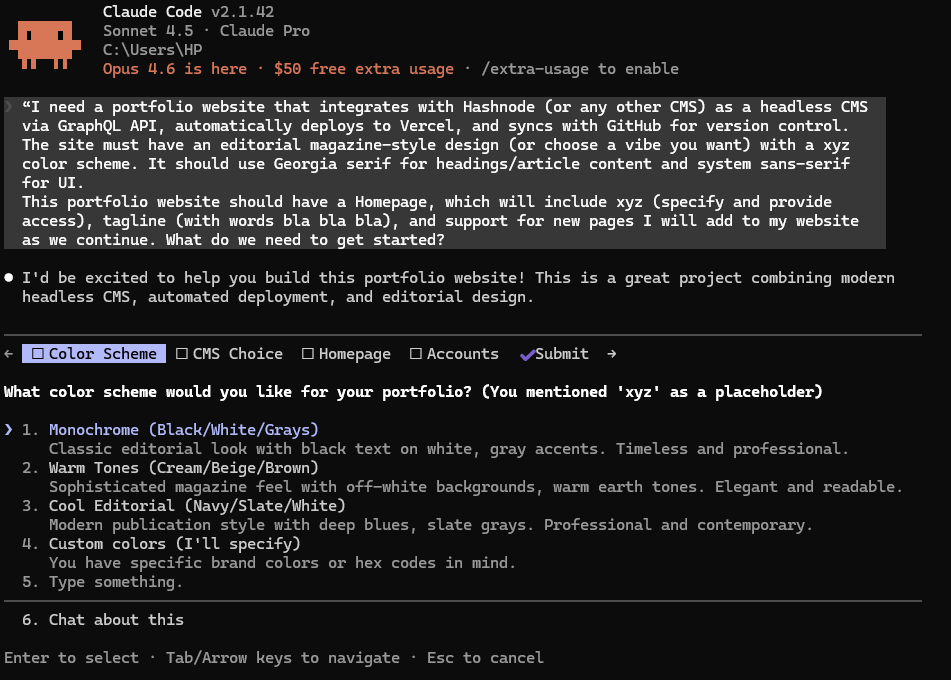
This prompt is a starting point. The more specific you are upfront, the less back-and-forth you’ll need later, and the closer your first build will be to what you actually want.
A more thorough prompt can trigger Plan Mode immediately, and you’ll still have questions to answer. For example:
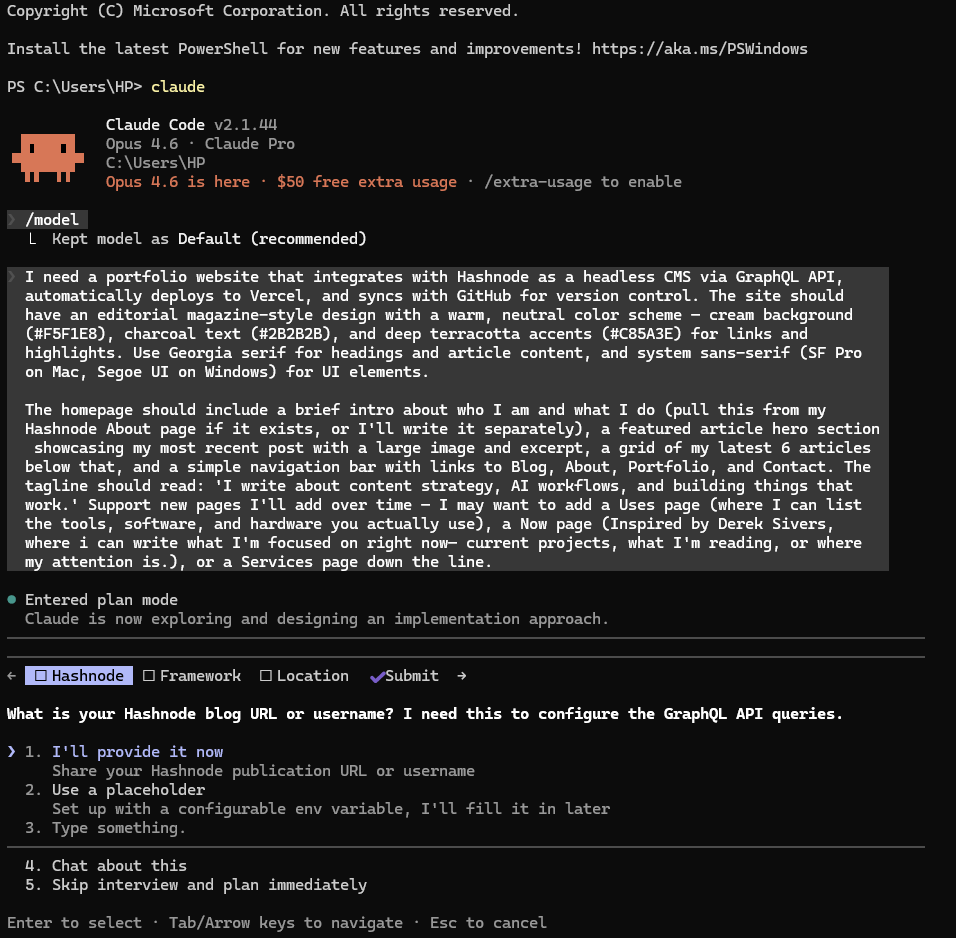
So when you write your prompts, go deep.
Drop links to websites you like, and paste in screenshots of specific design details you want Claude to mirror: a particular header layout, a font pairing, the way a certain site handles images.
On Windows PC, paste a screenshot into Claude Code with Alt+V.
On Mac, use Control+V.
Quick note: The standard Ctrl+V on Windows and Cmd+V on Mac won’t work here because terminal emulators handle paste differently from regular apps. If the shortcut is still being finicky, you can drag and drop an image file directly into the terminal window and Claude Code will recognize it as an attachment.
Specify your brand colors too.
Describe how you want your landing page arranged: whether it’s clean text about what you do or something more visual. The more you put in, the more you get out.
One thing that made this stage easy was Wispr Flow. See demo.
When I have a clear picture of what I want to build and I don’t want to forget, I just say it out loud and Wispr Flow transcribes it into the terminal. It works anywhere on your PC or Mac, so it’s not limited to this workflow.
Here’s what a dictated prompt looks like inside the terminal:
Of course you can edit this. If you want to try Wispr Flow, this is my referral link. If you sign up through it and actually record 2k words, I might get a free month’s sub.
When Claude Code needs more information (e.g. Github repo, Hashnode publication ID) to get started, it’ll ask:
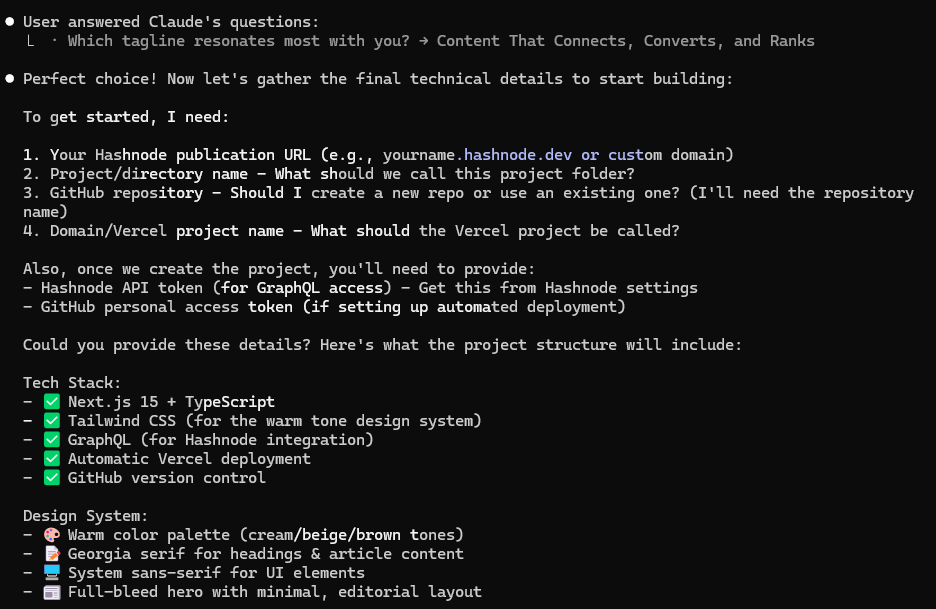
If you don’t know how to find some of these details, just tell Claude Code. It will walk you through the process, step by step.
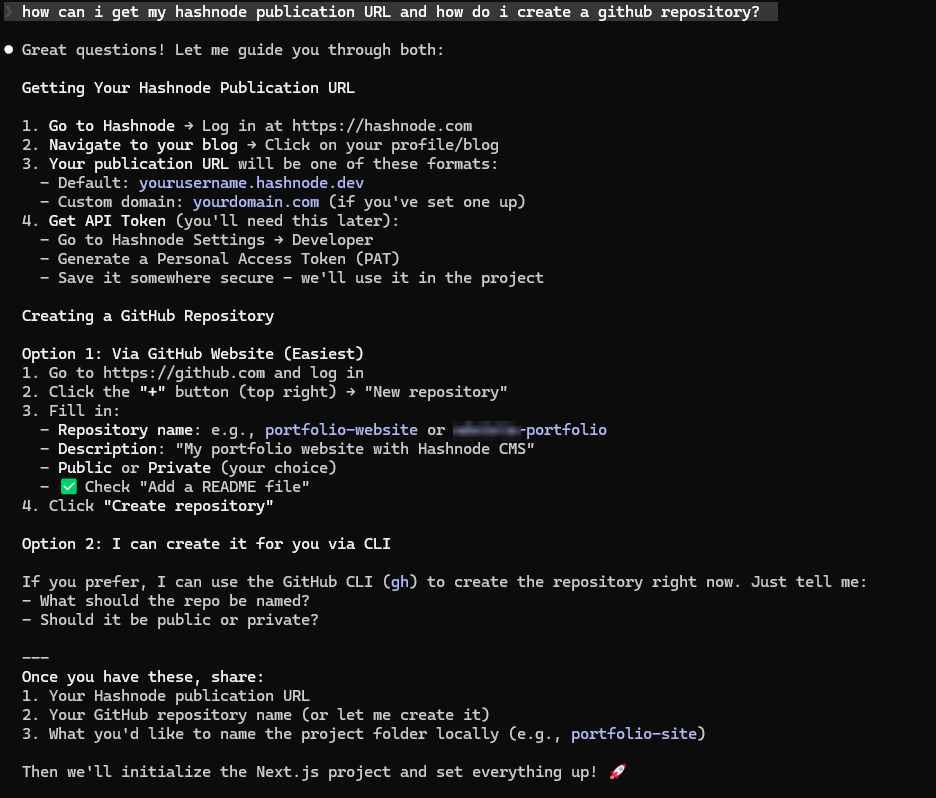
One thing worth knowing: Claude Code can create a GitHub repository for you directly from the terminal.
If you’d like it to handle the full setup while you watch (Github and Vercel), choose the option where it asks if you have a CLI and whether it should install one so it can create the repo for you. It’ll install GitHub and Vercel CLI, it’s essentially a remote control for GitHub that lives on your machine, and take it from there.
Once you’ve fed it everything it needs, it starts building:
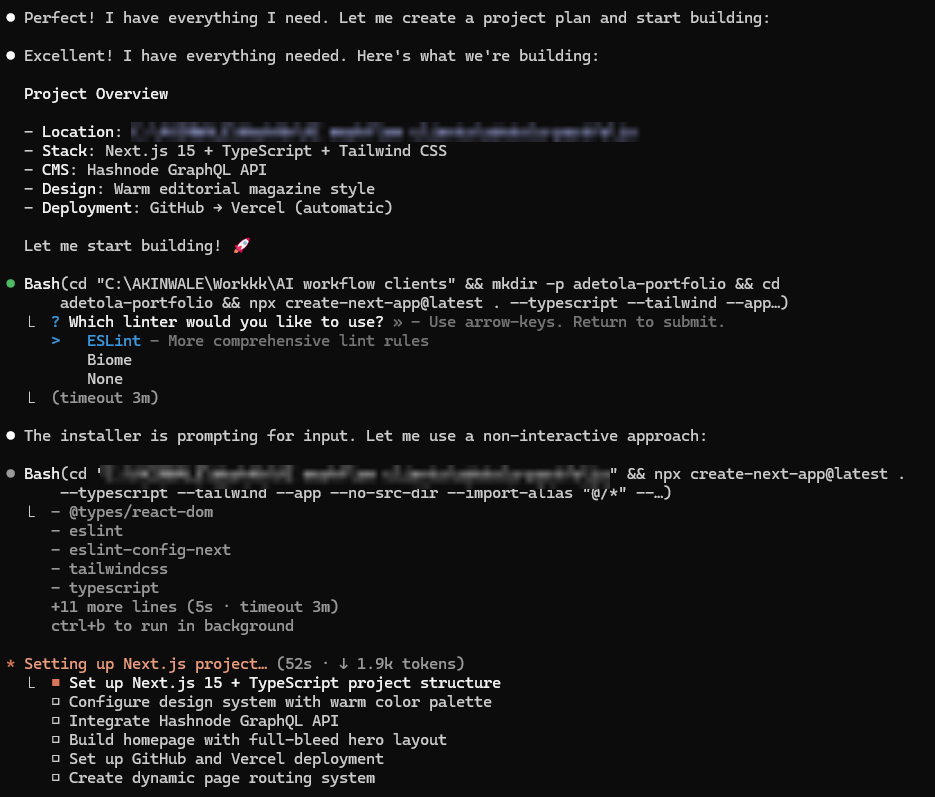
5. Interrupt and redirect mid-build
You don’t have to wait until Claude is done to change course. If you want to add something, e,g, a particular animation, a styling choice, press Esc to interrupt and tell it what you want.
This is also a good moment to reach for Wispr Flow if the idea in your head is easier to say than to type.
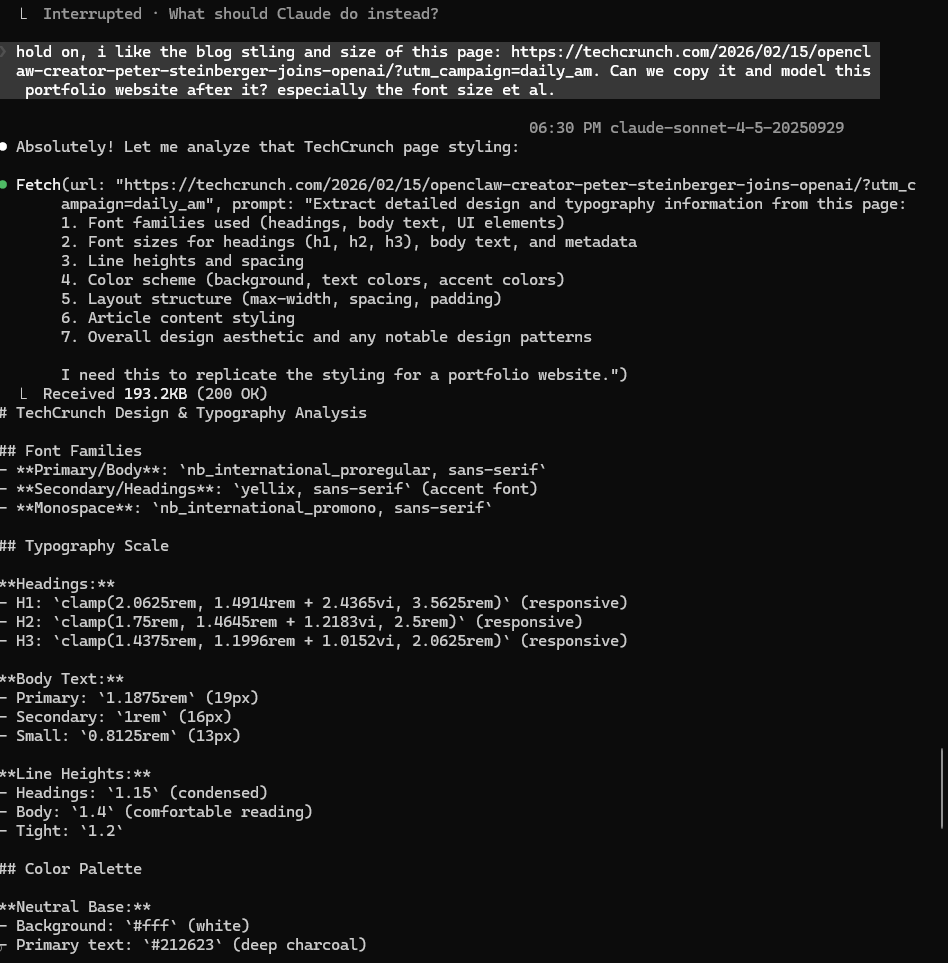
For example: while building this project, I got a TechCrunch email and loved the way their article page was laid out. I pasted the link into Claude and told it I wanted the blog styling to look like that. Here’s what it pulled from the page:
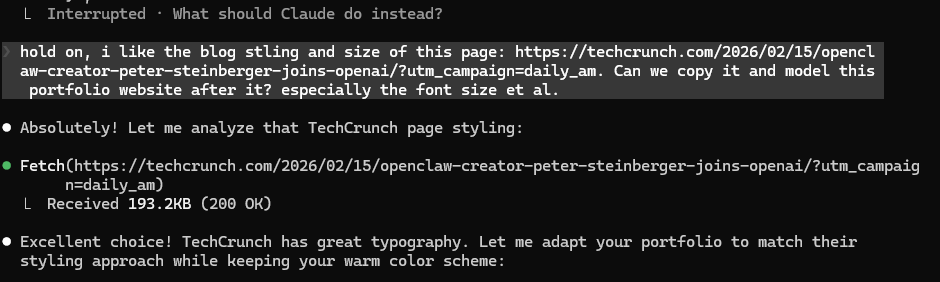
But this doesn’t say much, right? You can press Ctrl+O on Windows (or Cmd+O on Mac) to expand the view and see exactly what Claude saw and how it processed the page:
6. Check your site on localhost and deploy when you’re ready
When Claude Code tells you to check your site at localhost:3000, it means the initial build is done. Open your browser and go to that address.
What you see there is exactly what your live site will look like.
Localhost is just your computer acting as its own private server, showing you the site before anyone else can see it.
At this point, you can keep tweaking. Change the layout, adjust the colors, add a new section; anything you want to refine before it goes public.
When you’re excited enough to share, even as a rough draft, you can deploy to Github (and then Vercel) and send the link to anyone who wants to see what you’ve built.
Ask Claude Code to walk you through how to push to GitHub, set up Vercel, and connect your domain. It will guide you through each step and make the whole process faster than you’d expect:
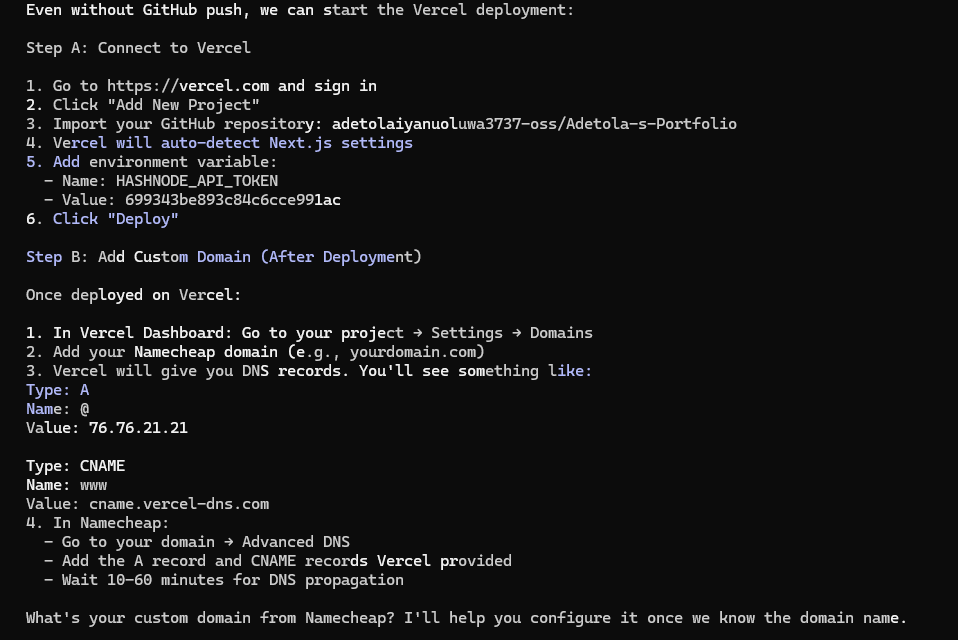
7. Import your repo on Vercel
If you have allowed Claude via the terminal to connect your Github with Vercel, you don’t need this part of the article.
But if not, it can still guide you on how to do it. Simply create a Vercel account and allow Github (or sign up with Github). It’ll automatically pull all your repositories.
Then, create a new project, and choose your portfolio repo to get started. Hit deploy afterwards:
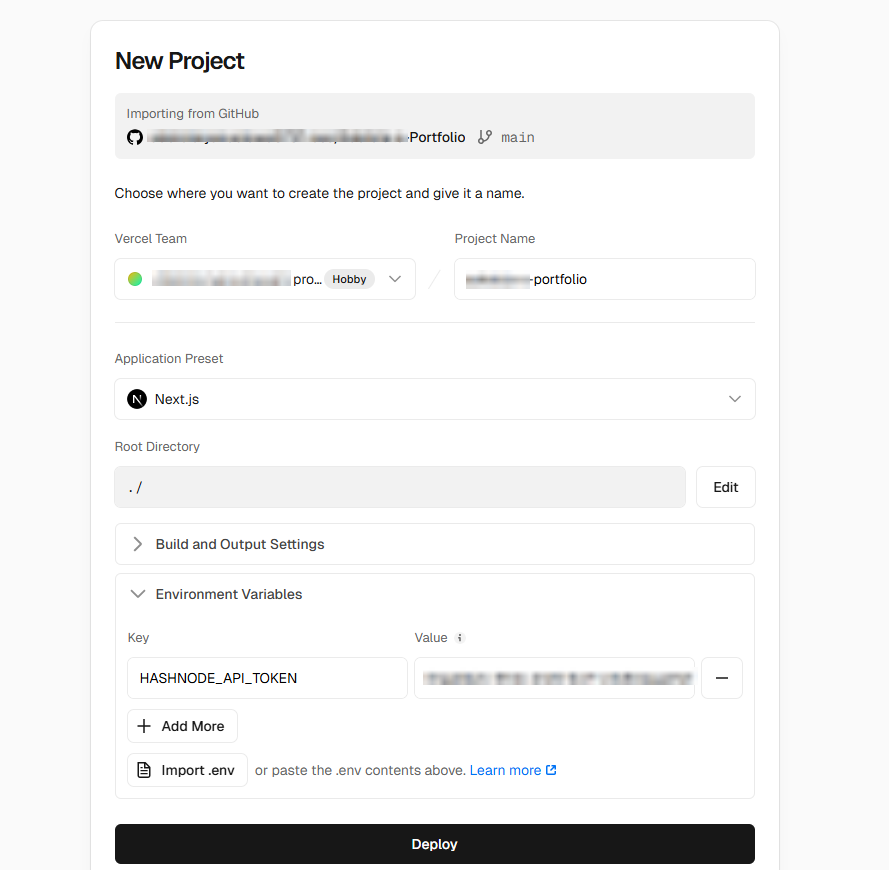
When it comes to adding your custom domain from Namecheap, click “Add Existing” and Vercel will point you through the DNS configuration.
Once it’s done, you’ll have two domains listed: a Vercel subdomain and your Namecheap domain. The live site runs on the Namecheap one:
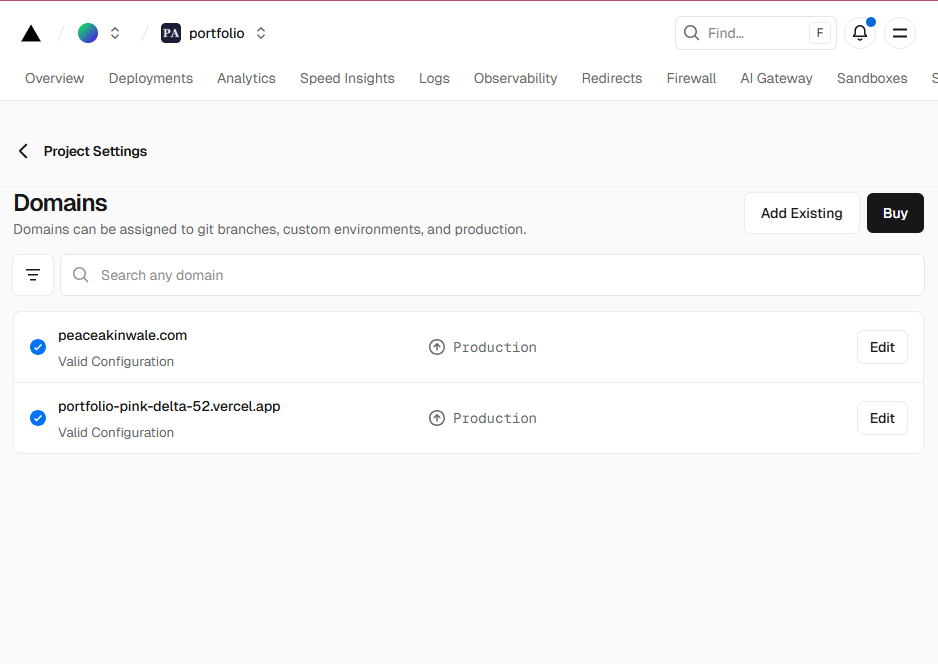
8. Keep building: When things break, use Plan Mode
You’ll hit roadblocks, and you’ll be frustrated. Treat each error as part of the process because that’s what this is: a process.
When your pages are returning 404 errors or something isn’t behaving the way it should, tell Claude Code about it and prompt it to enter Plan Mode to properly debug the issue.
You can also paste in a screenshot of whatever is breaking. Claude can read it and use it to understand what’s going wrong.
It may ask you to fetch your deployment logs (activity records from your production environment) that help Claude understand exactly what’s failing.
Here’s an example: the portfolio I was designing had a build error.
Pages were showing 404s even though I had already published the blog posts on Hashnode. Instead of digging through it myself, I explained the problem to Claude and told it to enter Plan Mode:
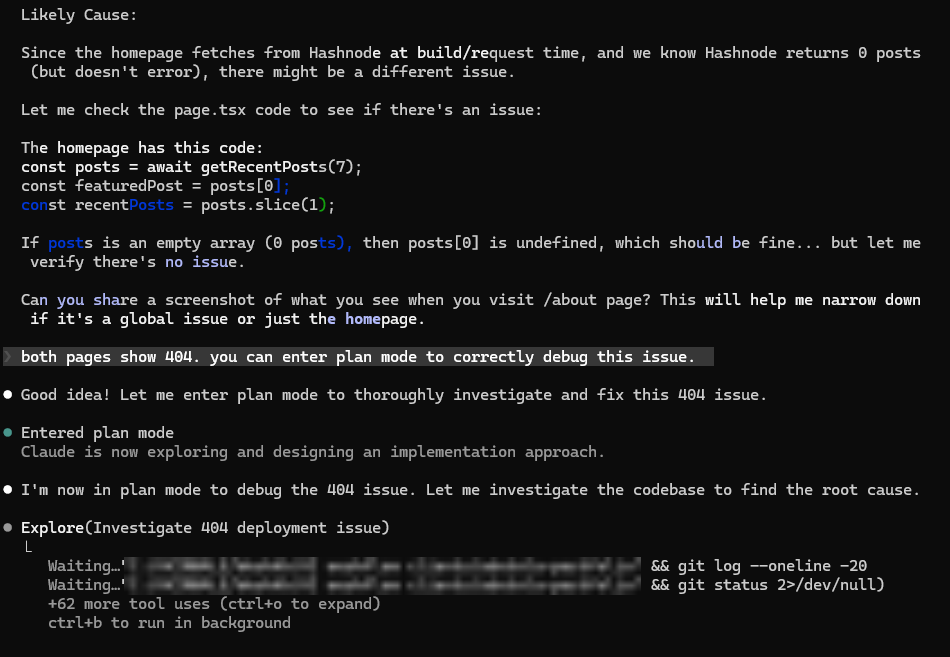
It read the files, checked the logs, reviewed the deployment, and diagnosed the root cause. Here’s what a Plan Mode outcome looks like:
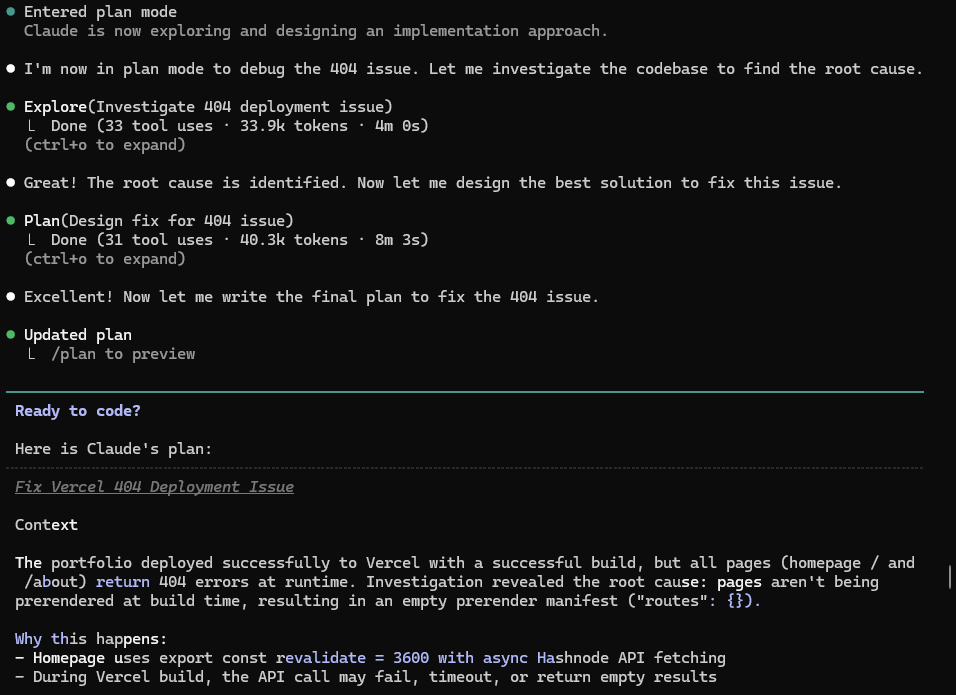
Once you’ve read through the plan and have nothing to flag, hit “Yes, clear context and auto-accept edits” and it gets to work:
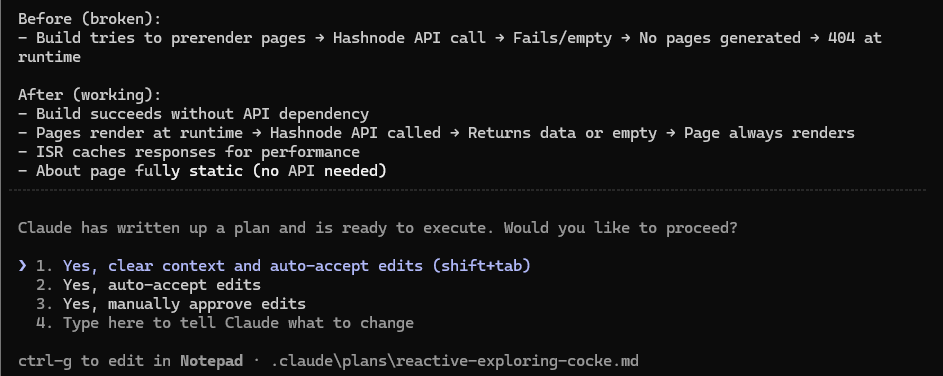
Tweaking Your Website
Your imagination is your only impediment when you’re vibe coding.
The other real limit is whether you can (and how you) articulate what you want. The clearer the picture in your head and in the prompt, the closer Claude Code gets to putting it on the screen.
Here are a few things I added that made my portfolio feel a bit better IMO:
1. Image Lightbox
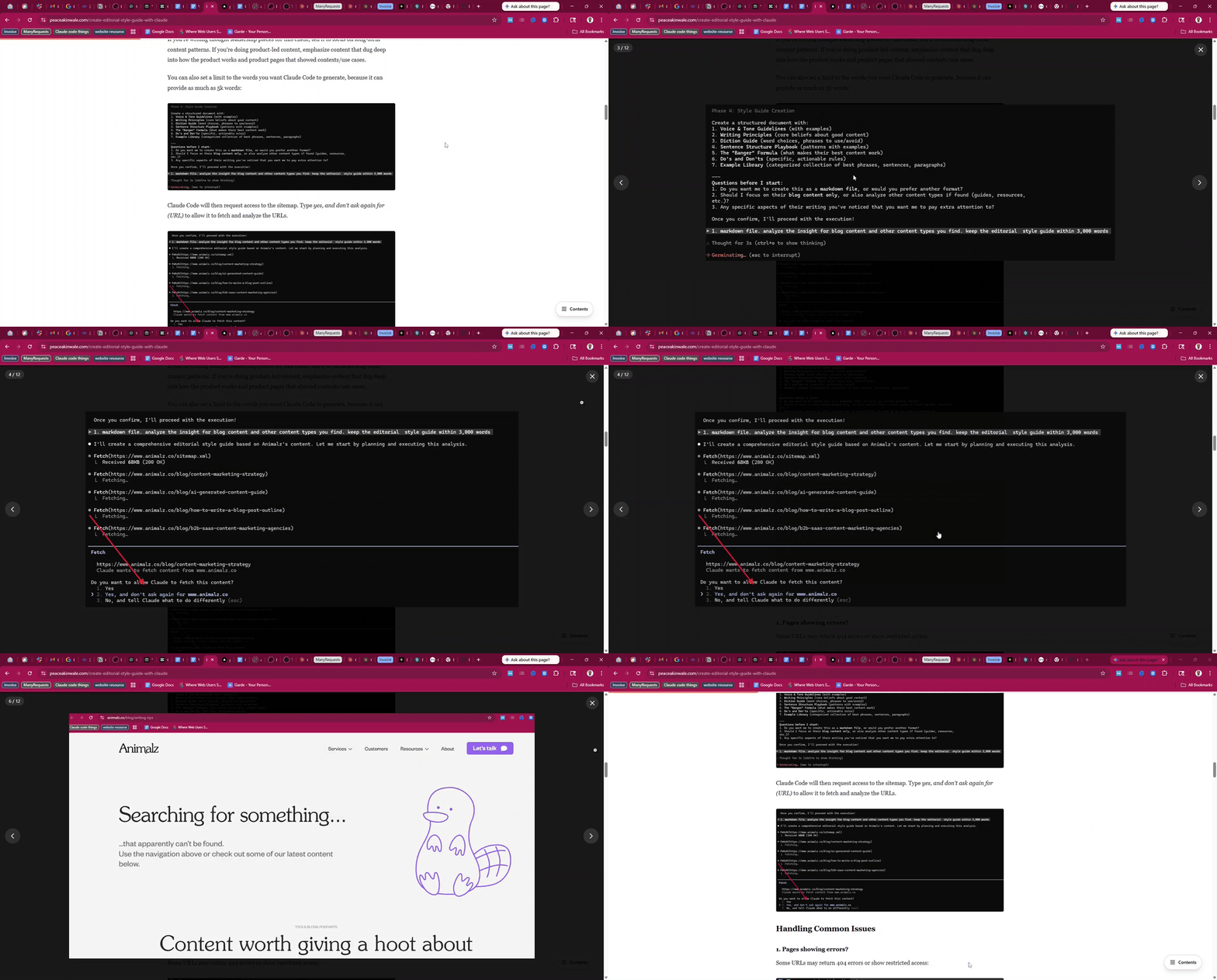
Click any image in this article and it opens in a full-screen overlay. It has a dark backdrop, zoom-in animation, and left/right swipe if there are multiple images on the page.
I added this because I saw it on someone else’s site and thought: if I’ll have screenshots in a post, people should be able to actually play with them. It made sense to me.
2. Table of contents
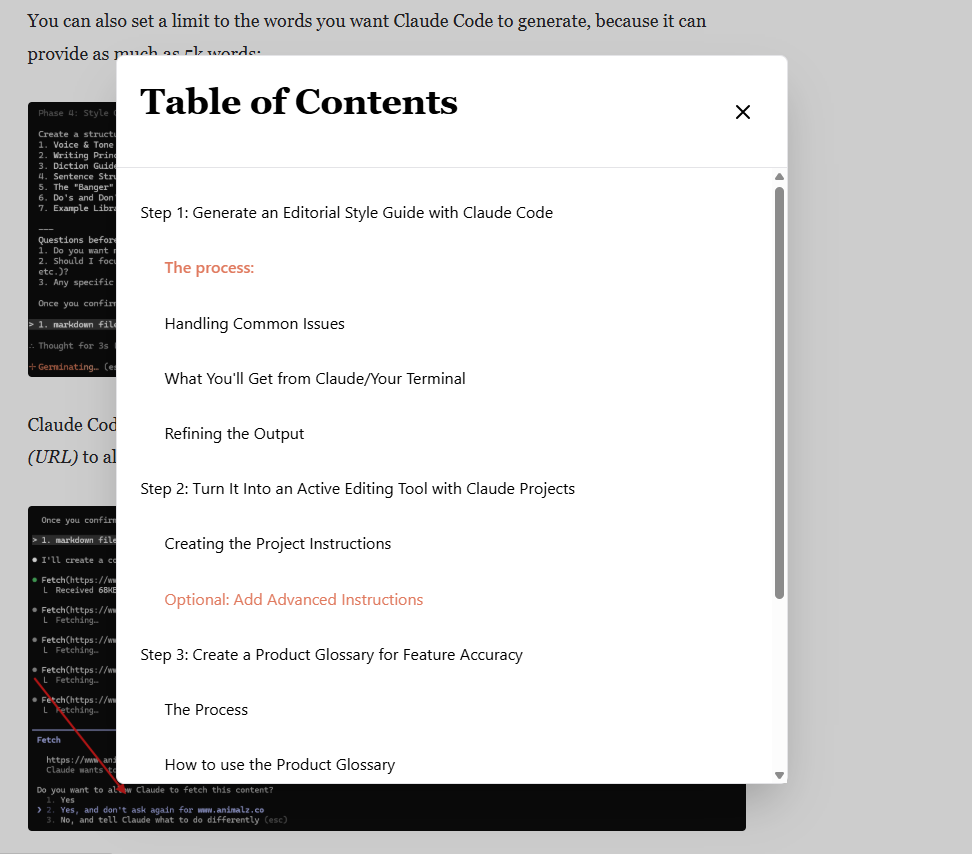
Hashnode’s default build had one, but it didn’t carry over when I rebuilt the UI with Claude Code.
So I built one from scratch, and it ended up better than Hashnode’s original. There’s still room to improve it, and I will.
3. Search bar on the blog
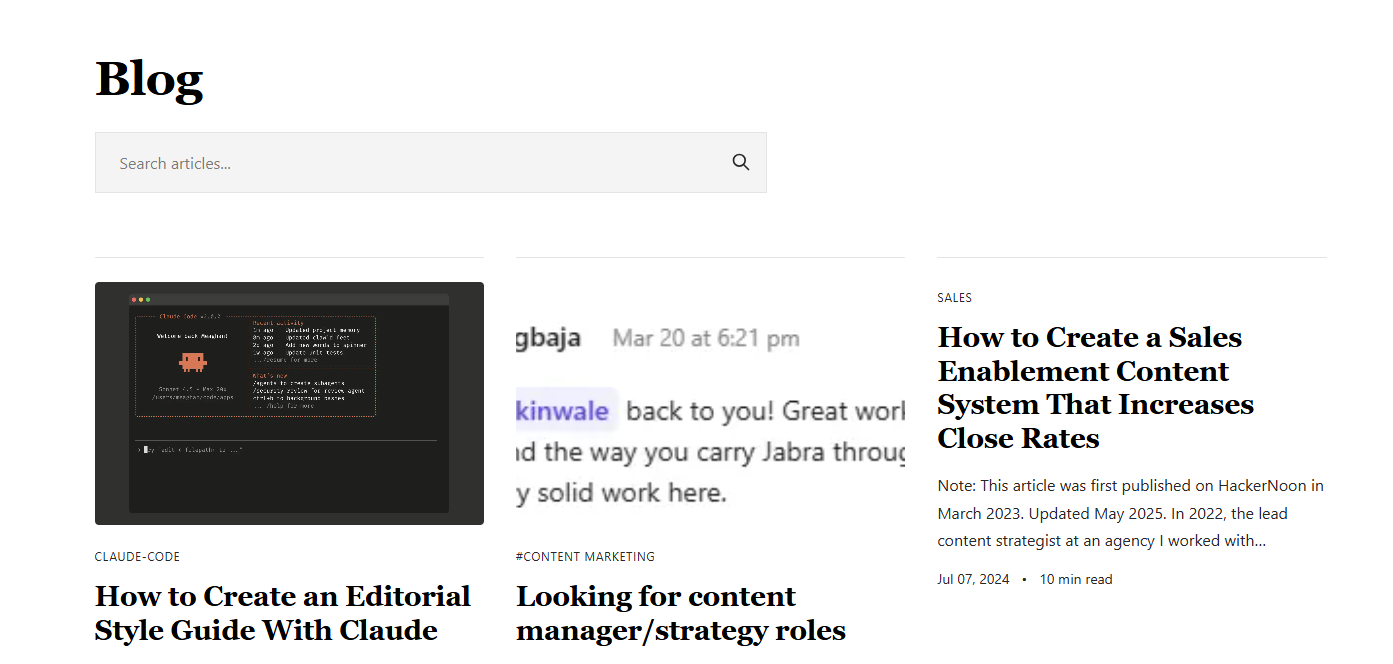
Back in the day, I read literary magazines obsessively. Poetry Foundation, The Iowa Review…, places that published the kind of writing that made you want to read it twice.
When I fell in love with a particular poem, essay or a writer, I used the search bar to find everything they’d published. When I had the flexibility to build that into my own site, it was an obvious choice.
4. Added an image to my About page
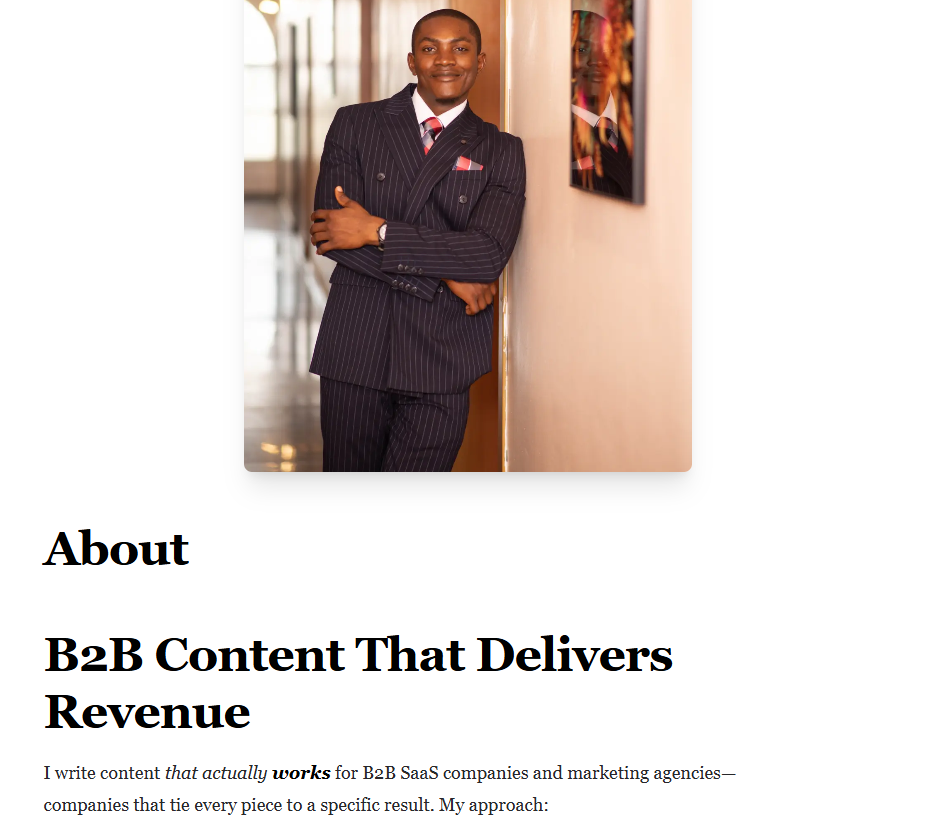
I added a photo of myself to my About page. Could I have done this without Claude Code? Probably.
But having AI handle the implementation made it easy.
Which CMS Can You Use as a Portfolio Website?
After my LinkedIn post on how I built this, a few people DM’d asking about alternatives to Hashnode (because that’s where their sites were hosted). I looked into it. Here’s what works:
-
WordPress
-
Ghost (note: if you’re in Nigeria, you may run into payment issues. They rejected every USD card I tried, which is genuinely maddening).
-
Sanity.io: a headless CMS with a visual editor
-
Keystatic: similar to Sanity, but stores your content as files directly in your GitHub repo
-
Plain markdown files saved to GitHub, if you’re comfortable enough on the technical side
What they all share, except option 5, is an API.
That’s what allows Next.js, the underlying code structure that handles how your site is built, to fetch and display your content from whichever CMS you choose.
In other words, you can use any CMS that has an API so Next.js can fetch your posts easily.
Other FAQs:
1. How long does this take?
Anywhere from three hours to a full day, depending on how many pages your current site has and whether you can export them.
It also depends on the tweaks you want to make, and how detailed your initial prompt was. A more specific prompt from the beginning will get you closer to your vision faster, and leave you with less to fix afterward.
Also, with Hashnode specifically, their editor has been acting up lately, so you may need to manually re-add images to existing blog posts.
But I think a website for a full day of work is a good deal. You’d probably spend as much tweaking a “done-for-you” portfolio website.
2. How much did this cost?
Honestly, just \(7.49 in total on domain for the first year, plus whatever Claude Code cost for your time on the terminal. The typical \)20/m should do. After the first year, you’d renew your domain for less than $15/year.
If you’re using a paid CMS like WordPress or Ghost, factor in their subscription costs on top of that.
3. Can I add animations?
Yes. And if you can picture the animation clearly and describe it in detail, you’ll be genuinely surprised by what Claude Code builds.
4. Can I edit later?
Yes. Your project files are saved locally on your computer.
Go back to the terminal, start Claude with “claude,” and navigate to your project folder using cd C:/… and make whatever changes you want with Claude Code’s help if you need it.
I just added a blog UI (for lines of code) as I reviewed this article:
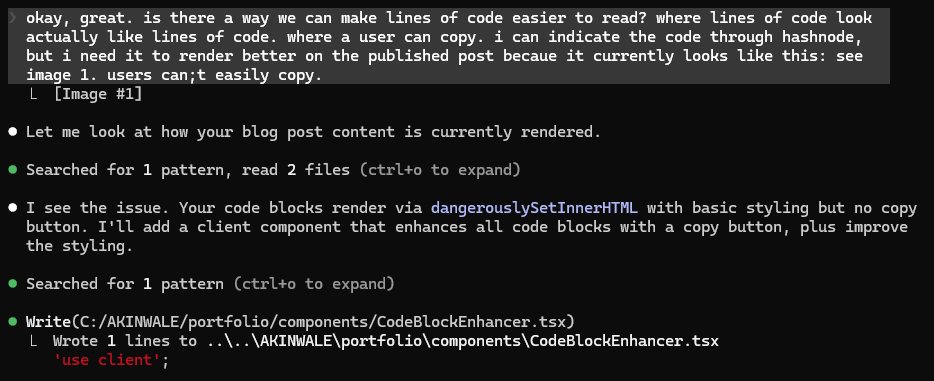
5. How many packages will Claude Code install on my computer?
As much as possible. It includes the GitHub CLI, Vercel CLI, Node.js, and many other packages it needs to get the job done. So don’t “resist” it.
The upside is that it’ll always ask you for permission, so double-check whatever it is before you allow.
I’ll update this article as more questions come in.
Need help getting this set up? Reach out on LinkedIn or send a message on WhatsApp. I’m happy to walk you through it.
And if you’d like to talk about a potential project, book a call or fill a form in the contact page.
If this article saves you time or money, you can buy me a coffee here. It goes a long way.
Related Articles

How to Optimize B2B SaaS Content for AEO
Your buyers are already in ChatGPT, asking about your category. Here’s the AEO process I use to optimize B2B SaaS content for answer engines.

How to Create an Editorial Style Guide With Claude
“This doesn’t sound like us” — avoid this feedback. Use Claude Code to extract any company’s style guide and automate the content editing process.
What I Learned Vibe-Coding My First App (& Shutting It Down)
I vibe-coded Garde, a recipe & DIY video-to-text app, in November 2025 & shut it down four months later. Here’s what building it taught me.
Comments
Leave a thought, question, or response. Your email stays private. If you use an email linked to Gravatar, your profile image may show automatically.
Loading comments...